


A Practical Method for Integrating External Systems With Acumatica Using Import by Scenarios
Acumatica provides flexible and powerful tools for integrating external applications. One of the most efficient approaches is to combine automated data preparation on the source system with Acumatica’s native Import by Scenario (SM206036) and Automation Schedules (SM205020). This method allows businesses to bring external data into Acumatica without hardcode and easier to maintain.
Below is an overview of the sample architecture and a real example implemented by S4 Consulting for a client (daily getting the Sales data from Loyverse POS to Acumatica):
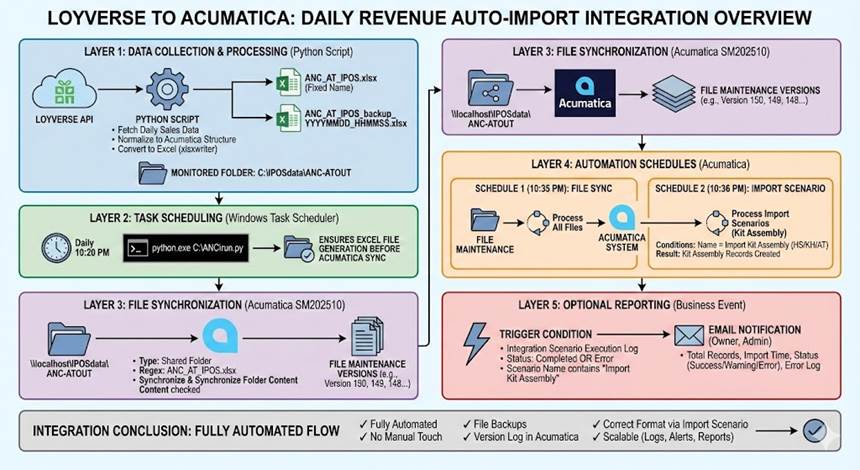
LOYVERSE API
→ Python script processes the data and exports an Excel file
→ Windows Task Scheduler runs the script daily
→ File is placed into a shared folder
→ Acumatica File Synchronization retrieves the file
→ Automation Schedule executes the Import Scenario
→ Kit Assembly documents are created in Acumatica
→ (Optional) Business Event sends an email report
1. Extracting and Preparing Data From External Systems
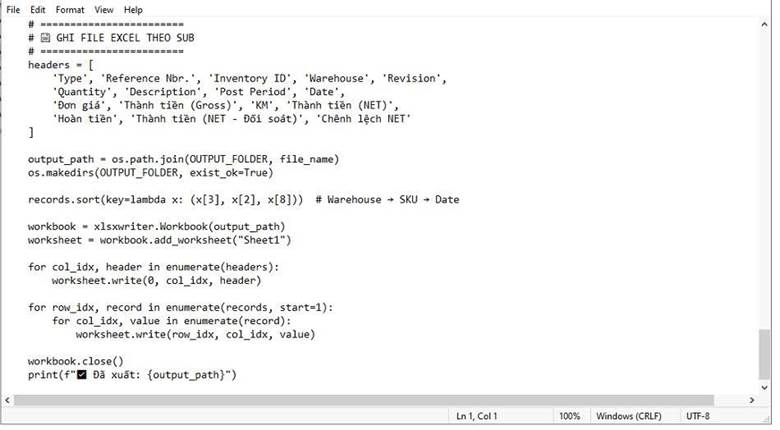
The integration begins with a Python script that connects to the Loyverse POS Web API to retrieve daily sales transactions. This script standardizes the raw data – calculations, formatting, SKU mapping, warehouse logic, date conversion – and transforms the dataset into a structure that matches Acumatica’s Import Scenario requirements.
Key steps include:
- Calling Loyverse API using secure access tokens
- Extracting sales, item details, pricing, taxes, and revenue breakdown
- Converting and normalizing data according to Acumatica fields
- Sorting data in a consistent order for predictable processing
- Exporting the dataset into Excel format compatible with Acumatica (suggest using xlsxwriter)
The script is hosted on any small pc/virtual machine, ensuring stability, centralized control, and enterprise-grade security.
2. Automating the Data Preparation Process
To make the integration fully automated, the data extraction script is scheduled to run at fixed intervals, typically daily. Common tools include Task Scheduler on Windows or Cron on Linux.
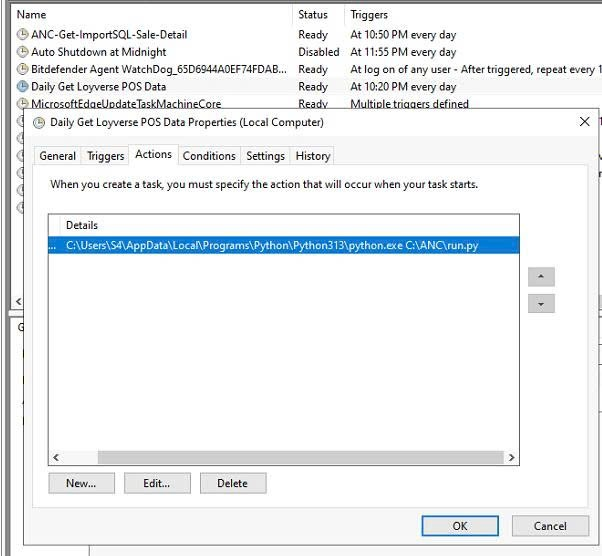
The script performs tasks such as:
- Fetching new data
- Generating the import file
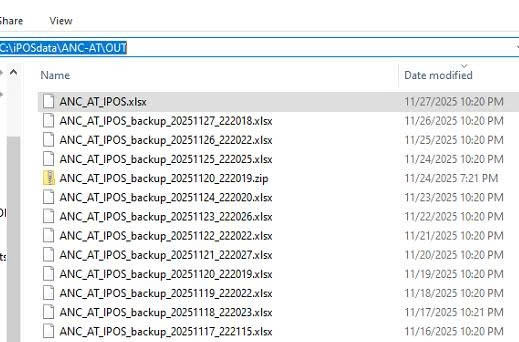
- Creating backup versions for audit purposes
- Saving the file in a monitored directory
This ensures that the latest data is always ready for Acumatica.
3. Bringing the File Into Acumatica With File Synchronization
Acumatica’s File Maintenance (SM202510) and File Synchronization (SM202530) are then used to automatically pick up the generated file from the shared folder.
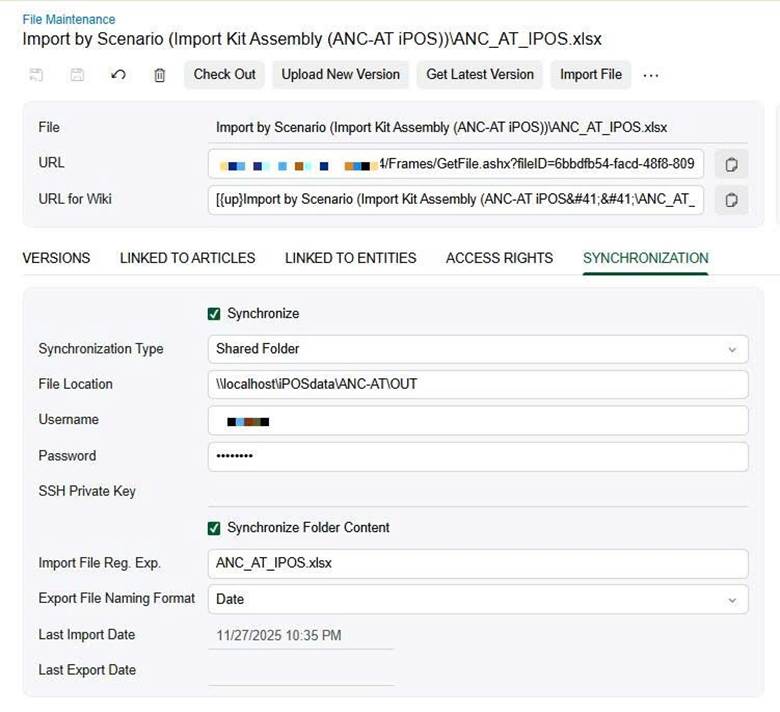
Key capabilities include:
- Monitoring a folder for new or updated files
- Importing file versions directly into Acumatica’s file repository
- Maintaining a full version history for traceability
- Triggering only when file names match the configured pattern
This approach removes the need for manual uploads.
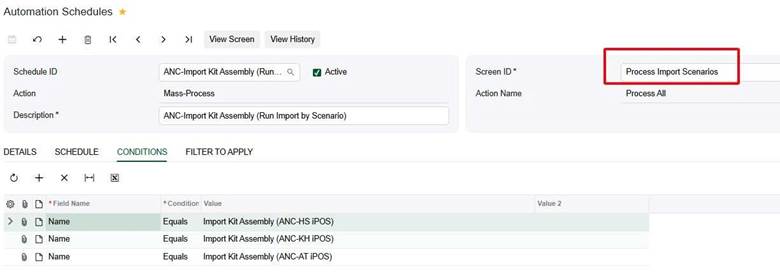
4. Executing the Import Scenario Automatically
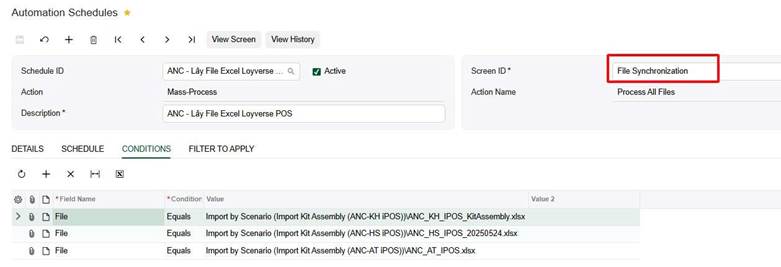
Once the file is synchronized, Acumatica’s Automation Schedules execute the import logic.
Two schedules are typically configured:
- A schedule that processes File Synchronization
- A schedule that runs the Import Scenario and creates transactions in Acumatica
These schedules can run in sequence within minutes, ensuring data flows into Acumatica without user intervention.
5. Optional: Sending Notifications With Business Events
To keep users informed about the import status, a Business Event can be added. It may send:
- Summary notifications
- Error messages
- Record counts
- Time of execution
This is helpful for system owners and finance teams who want daily confirmation of successful imports.
Practical Example Implemented by S4 Consulting
S4 Consulting recently delivered a daily automation integration for a client in the F&B sector.
In this project:
- Sales data was extracted from their POS system using a Python script
- The script transformed raw transactions into the required structure for Acumatica’s Import Scenario
- A scheduled task automatically generated the import file each night
- Acumatica’s File Synchronization collected the updated file
- The Import Scenario created daily revenue records inside Acumatica
- A Business Event sent a summary email to the owner upon completion
This solution enabled the client to achieve a fully automated workflow with zero manual intervention, ensuring accuracy, timeliness, and streamlined operations.
Conclusion
This integration method is simple, scalable, and reliable. By combining automated data preparation with Acumatica’s native Import Scenario, File Synchronization, and Automation Schedules, businesses can connect nearly any external application to Acumatica without custom integration middleware.
For organizations looking to automate data flows or connect third-party systems to Acumatica, S4 Consulting can provide guidance, implementation, and optimization based on proven best practices.