



Odoo Login: How to Sign In, Fix Login Errors and Secure Your Account
Odoo login is the first step to accessing your Odoo system and apps such as CRM, Sales, Accounting, Inventory, Purchase, Manufacturing and HR. The login address and process vary depending on whether your company uses Odoo Online, Odoo.sh, or Odoo Community/Enterprise on its own servers.
This guide walks you through the Odoo login process from basic to advanced, and shows how to fix the most common errors when you can’t sign in.
What is Odoo Login?
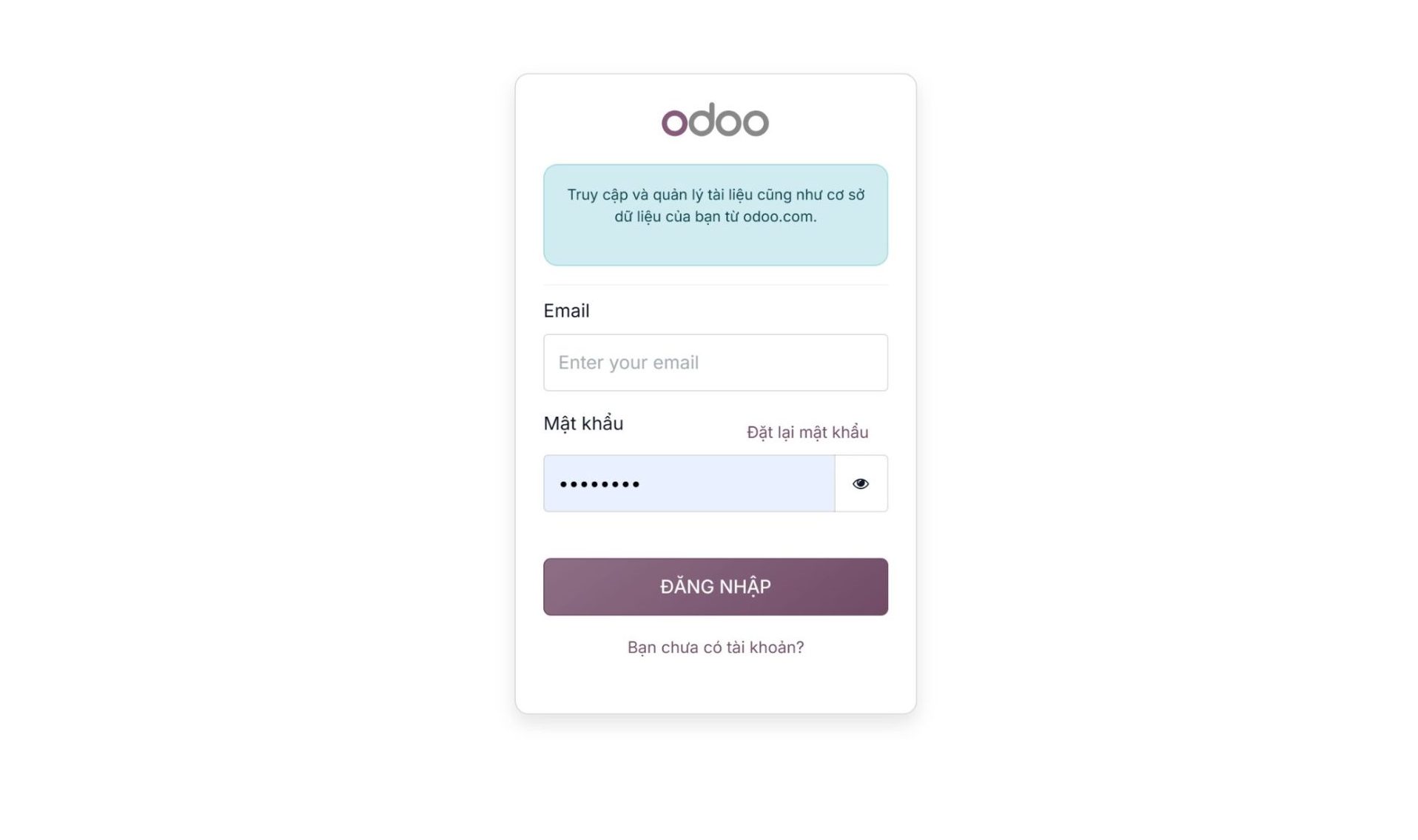
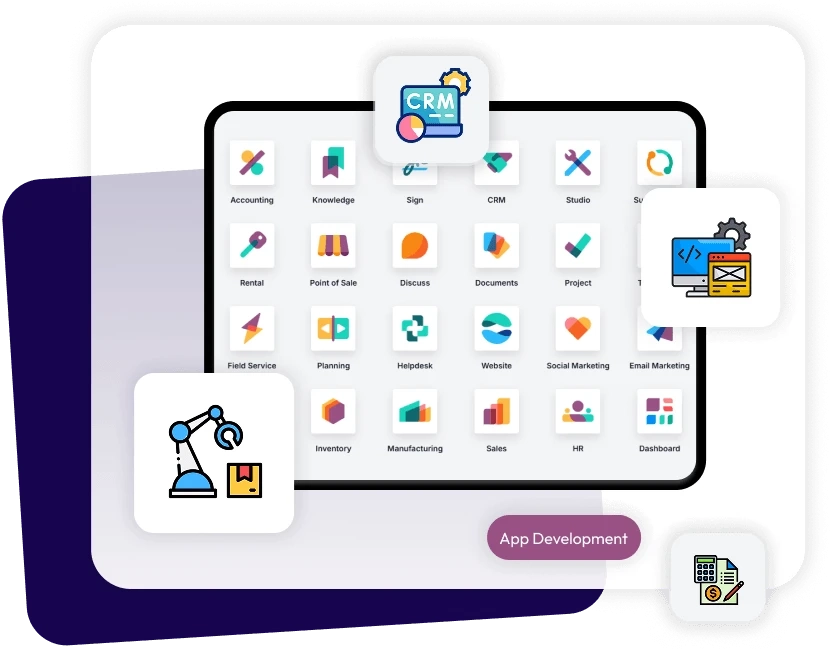
Odoo Login is the authentication page users pass through before accessing an Odoo system. After a successful login, Odoo takes users to the Odoo Apps Dashboard, which shows the apps their account has permission to use.
To log in, users typically need:
- An email address or username
- A password
- A two-factor authentication (2FA) code, if the company has enabled it
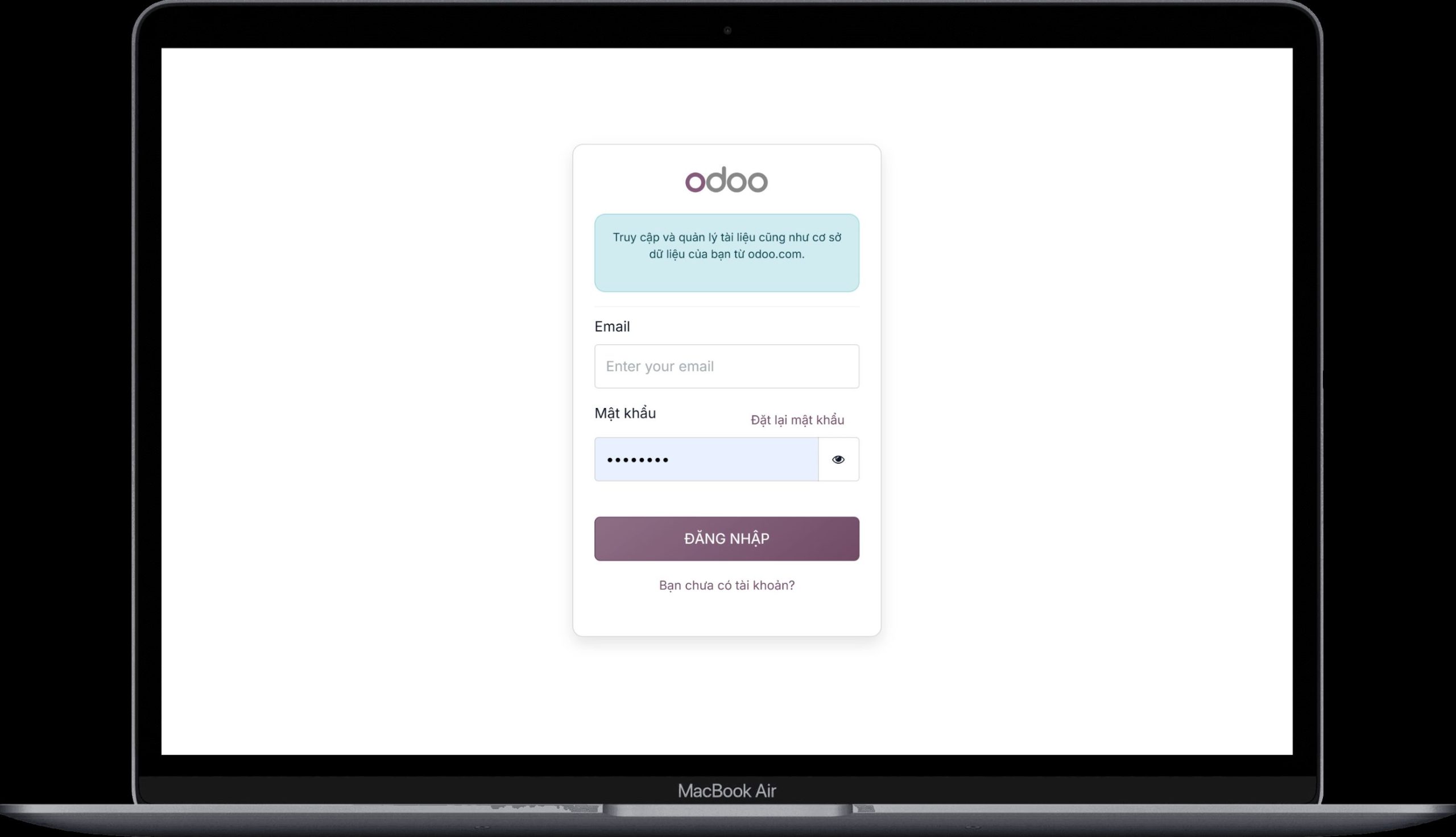
Odoo Login URL: where is the login page?
There is no single URL for every Odoo system. The login page address depends on how your company deploys Odoo, but most end with /web/login.
Odoo Online login
The SaaS edition run by Odoo. Each company gets its own subdomain on odoo.com.
https://your-company.odoo.com/web/loginOdoo.sh login
Odoo’s cloud platform that allows custom code. Production instances usually run on the company’s own domain.
https://erp.yourcompany.com/web/loginSelf-hosted Community / Enterprise
Odoo runs on the company’s own servers or cloud (on-premise, VPS, Docker).
https://your-domain.com/web/loginNot sure of your company’s Odoo address? Ask your Odoo administrator, or look for the invitation email you received when your account was created.
How to log in to Odoo in 3 steps
The Odoo sign-in process is the same on Chrome, Edge, Firefox and Safari. The only differences are the address you use and whether your company has enabled 2FA.
Open your browser and go to your company’s Odoo address, for example https://erp.company.com/web/login or https://company.odoo.com. Odoo will redirect you to the login screen.
Email / Username: the email or username your administrator gave you.
Password: your account password.
Then click Log in.
If your company uses two-factor authentication, Odoo will ask for a code from your authenticator app. Once verified, you land on the Odoo Apps Dashboard.
Forgot your Odoo password?
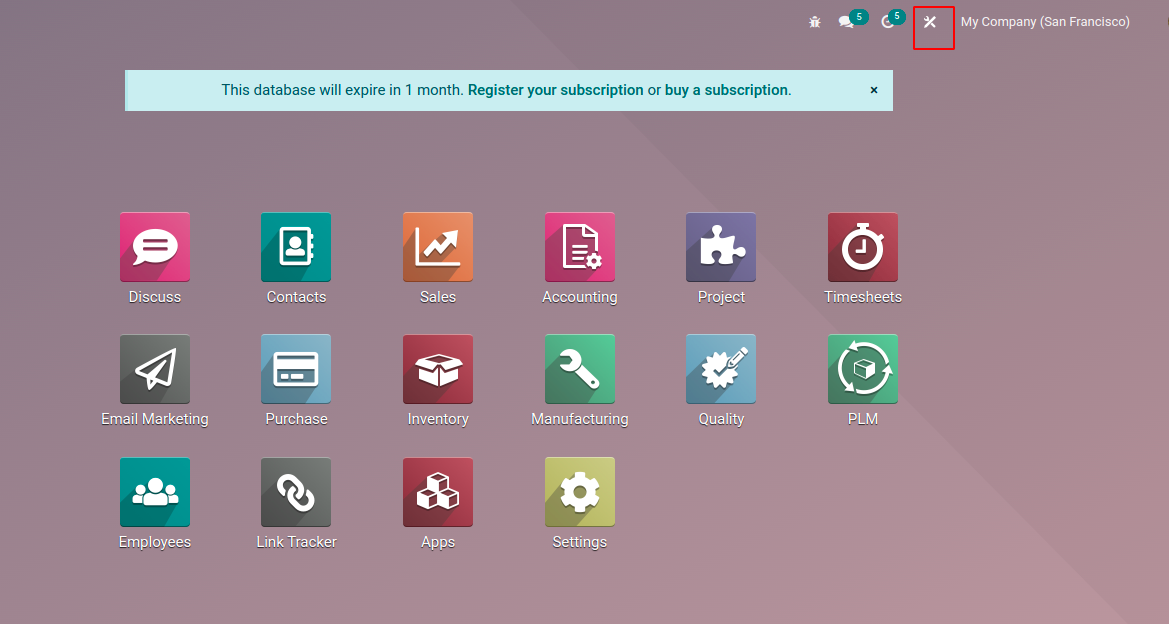
On the Odoo login screen, click Reset Password, then enter the email address linked to your Odoo account.
If the account exists and password reset is enabled, Odoo will email you instructions to set a new password.
On self-hosted Odoo Enterprise or Community, the administrator may also need to check the Outgoing Mail Server settings. Without a configured mail server, reset emails are never sent. See Odoo’s guide to email communication.
Didn’t get the reset email? Check these in order:
Your Spam / Junk folder
Whether you typed the email address correctly
Whether your Odoo account uses that email
Whether your company mail server blocks emails from Odoo
Whether the administrator has restricted password reset
Common Odoo login errors and how to fix them
A failed Odoo login is not always a wrong password. Before troubleshooting, identify which of these three layers the problem sits in.
The login page loads, but you can’t get in.
- Wrong email or password
- Wrong database
- Invalid 2FA code
You’re logged in, but apps or menus are missing.
- No User Group assigned
- Access Rights / Record Rules
- Inactive account
The login page won’t load, often for many users at once.
- Odoo service, PostgreSQL
- Nginx / Reverse Proxy
- DNS, SSL, Firewall
Odoo login shows “Wrong login/password”
This is the most common error. Possible causes include:
How to fix it: check each item in this order
If you still can’t log in, an administrator can check the user under the path below (see Odoo’s Users documentation):
Odoo login page won’t load
You open the domain, but the browser shows one of these messages:
Connection refused502 Bad Gateway504 Gateway TimeoutThis site can’t be reachedERR_CONNECTION_REFUSED
In this case, the problem is usually not the account. Check the infrastructure components instead:
For example, when Odoo runs on Docker, an administrator can check the containers and view the logs:
# List running containers
docker ps

# View the Odoo container logs
docker logs <odoo-container>
Odoo login returns 502 Bad Gateway
A 502 Bad Gateway error usually appears when the reverse proxy (such as Nginx) cannot reach the Odoo backend.
If the Odoo backend is down, or the port is misconfigured between Nginx and Odoo, users can’t reach the Odoo login page even with a perfectly valid account.
When you see a 502, the administrator should check the Odoo service status first. Resetting the password won’t help here.
Is your Odoo system causing frequent operational headaches? Explore 3 Cloud ERP options that remove the burden of managing servers yourself.
Get the free ebookOdoo login works but apps are missing: an access rights issue
A successful login doesn’t mean a user can use every feature. Odoo uses a multi-layered permission system to control who can see and edit what.
For example, a user may log in to Odoo but not see Accounting, Inventory, Manufacturing, Purchase or Settings. That’s expected behavior if the account hasn’t been granted access.
An administrator can check this under:
Then open the user and review access per app. Each permission type is described in Odoo’s Access rights documentation.
Odoo login on mobile
You can access Odoo on a phone through a browser or an app that matches your company’s version and deployment.
On systems with a custom domain, users need the exact ERP address, for example https://erp.company.com. After logging in, the interface only shows the apps the user has access to.
For staff who often work outside the office, companies should combine:
Securing Odoo accounts: 5 essential layers of protection
The login page is one of the most important entry points to protect in any ERP system. At a minimum, companies should apply these five measures.
Never run Odoo in production without SSL/TLS.
Use long passwords and avoid easy-to-guess information.
2FA reduces the risk when a password leaks.
Don’t give Administrator rights to every user.
Deactivate accounts or revoke access promptly when staff leave.
Example of role-based access
| User group | Access |
|---|---|
| Sales | CRM, Sales |
| Purchasing | Purchase |
| Warehouse | Inventory |
| Accountant | Accounting |
| Production | Manufacturing |
| Administrator | System Configuration |
Odoo login for self-hosted deployments
When Odoo Community or Enterprise runs on your own infrastructure, the login experience depends heavily on your system architecture. The diagram shows a typical production setup. Odoo also publishes an official guide to system configuration and reverse proxy setup for self-hosted environments.
Larger environments may also add:
When users report “I can’t log in to Odoo”, first determine whether the issue is in authentication, authorization or infrastructure.
Checklist when you can’t log in to Odoo
Use this checklist to quickly tell account problems apart from Odoo system problems. The “Layer” column shows who should handle each item.
| Check | Layer | Question |
|---|---|---|
| 1Domain | Infrastructure | Can you reach the Odoo address? |
| 2SSL | Infrastructure | Is the certificate still valid? |
| 3Server | Infrastructure | Is the Odoo service running? |
| 4Database | Infrastructure | Is PostgreSQL up? |
| 5Proxy | Infrastructure | Is Nginx / the reverse proxy working? |
| 6Firewall | Infrastructure | Are required ports blocked? |
| 7Account | Authentication | Does the user exist? |
| 8Password | Authentication | Is the password correct? |
| 9Database | Authentication | Are you logging into the right database? |
| 102FA | Authentication | Is the verification code correct? |
| 11Email | Authentication | Did the password reset email arrive? |
| 12Permission | Authorization | Is the user inactive or missing permissions? |
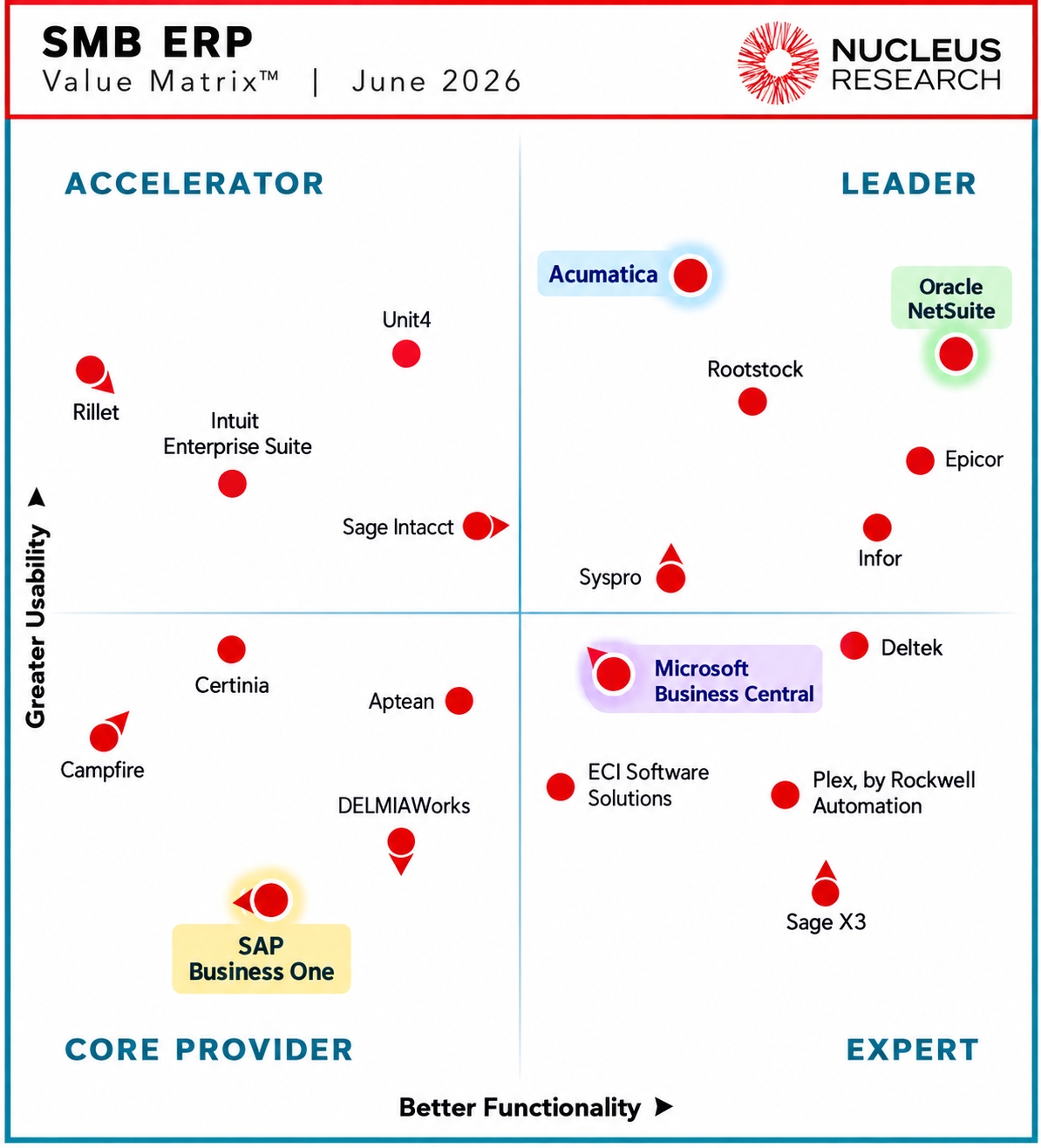
Upgrading Odoo to Cloud ERP: 3 Options Worth Considering
Odoo serves many companies well in their early stages. As you grow, running your own servers, maintaining customizations and keeping up with new versions can become a burden. This ebook helps you assess your next options objectively.
- Signs it may be time to consider an upgrade
- Acumatica, Oracle NetSuite and Microsoft Dynamics 365 Business Central compared
- Backed by evaluation data from Nucleus Research
Odoo login FAQ
What is the Odoo login URL?
There is no single URL for every Odoo system. On Odoo Online, the address is usually https://your-company.odoo.com/web/login. On self-hosted systems, the login page typically looks like https://your-domain.com/web/login.
What should I do if I forgot my Odoo password?
Click Reset Password on the Odoo login screen and follow the instructions sent to your email. If the email doesn’t arrive, check your Spam folder and contact your Odoo administrator.
Why can I log in to Odoo but not see Accounting?
Your account may not have Accounting access yet. An administrator should check your User Groups and Access Rights under Settings → Users & Companies → Users.
Does Odoo login support 2FA?
Yes. Companies can enable two-factor authentication to strengthen account security. Users then enter a code from an authenticator app after their password.
Why does Odoo login show a 502 error?
A 502 error usually means the reverse proxy or the Odoo backend isn’t responding. It’s an infrastructure issue rather than a username or password problem, so check the Odoo service and Nginx configuration first.
Why does Odoo say “Wrong login/password” when my details are correct?
You may be logging into the wrong database, your account may be inactive, or the user may not exist in that database. Check Email → Database → Password in that order, then ask your administrator to confirm the account status.
Conclusion
Odoo login looks like a simple username and password step. In a business environment, however, it involves several layers: authentication, authorization, database, server, reverse proxy, SSL and security.
If it’s just a wrong password, the user can reset it right from the login screen.
Check the infrastructure and services behind the login page: Odoo service, PostgreSQL, proxy, DNS and SSL.
For companies implementing or upgrading Odoo, designing the right login and permission architecture from the start will significantly reduce operational issues later. If you’re considering a move to Cloud ERP to offload infrastructure management, read S4 Consulting’s Odoo to Cloud ERP upgrade ebook.