



How to connect Claude to NetSuite securely: 3 setup steps and 7 mistakes to avoid (ChatGPT too)
Written by the S4 Consulting Oracle NetSuite team · Updated 29 Oct 2026
The safest way to connect Claude to NetSuite, and the same applies to ChatGPT, is NetSuite AI Connector Service: an Oracle service that lets an AI client call tools inside NetSuite over the Model Context Protocol (MCP), authenticates with OAuth 2.0 and runs every request under the permissions of the user’s NetSuite role. Setup takes three steps: enable the required features and install the MCP Standard Tools SuiteApp, create a dedicated least-privilege role for AI, then connect, verify and monitor the execution log. This guide walks through each step with real screenshots and lists seven common mistakes that make the connection less secure than it needs to be.
What are NetSuite AI Connector Service and MCP?
NetSuite AI Connector Service is the official bridge between Oracle NetSuite and MCP-capable AI clients such as Claude and ChatGPT, so users can query and work with ERP data in natural language instead of exporting files. MCP is an open standard introduced by Anthropic in November 2024 that defines how an AI application discovers and calls tools exposed by another system. In NetSuite, those tools come from the Oracle-managed MCP Standard Tools SuiteApp: ns_runReport for standard reports, ns_runSavedSearch for saved searches, ns_runCustomSuiteQL for SuiteQL, and ns_getRecord, ns_createRecord and ns_updateRecord for reading, creating and updating records. Every call goes through OAuth 2.0 (Authorization Code Grant with PKCE), is bounded by the user’s role and is logged in NetSuite.
On cost, AI Connector Service is not a separately licensed feature and the MCP Standard Tools SuiteApp is free to install, although the AI client may require a paid plan such as Claude Pro or a suitable ChatGPT plan, and some ChatGPT plans need extra setup such as Developer Mode. On 31 March 2026 NetSuite also announced MCP Apps for AI Connector Service, which extend how financial data is presented directly inside Claude.
In S4’s consulting environment the AI role is created separately, yet when we review actual permissions we often find that a role meant “only for AI” still carries many transaction permissions at Full, because it was copied from an accounting role. We therefore recommend reviewing each permission and lowering it to View for the first phase, opening more only once confirmation steps and log review are in place.
Why connect Claude to NetSuite instead of uploading Excel exports?
A direct connection keeps the data current and keeps access under NetSuite’s control, while an exported spreadsheet loses both the moment it leaves the system. Once an accountant uploads a receivables file to a chatbot, the file sits outside role-based security, nobody can tell who has seen it, and the figures start going stale. With an MCP connection the AI sees only what the role allows, each tool call leaves a trace in the execution log, and an administrator can switch the connection off at any time. The risk does not disappear: Oracle states plainly that NetSuite cannot eliminate prompt injection or hallucination, only limit their impact. Getting the configuration right from day one therefore matters more than the connection itself.
Step 1: Which features and SuiteApp must be enabled in NetSuite?
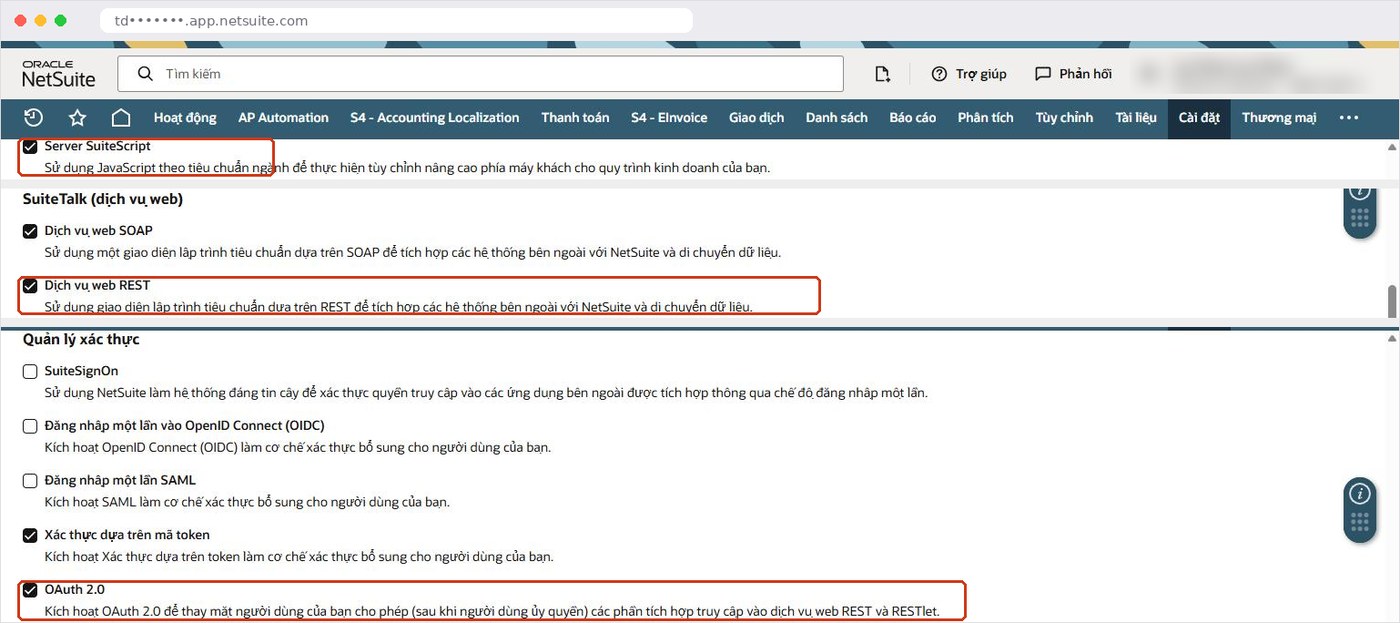
You need three SuiteCloud features and the MCP Standard Tools SuiteApp. Go to Setup > Company > Enable Features, SuiteCloud subtab, and check Server SuiteScript and OAuth 2.0; if you use the MCP Standard Tools SuiteApp, also enable REST Web Services. Menu labels can vary slightly by release and interface language, but this is the common configuration.
Next, install the “MCP Standard Tools” SuiteApp from the SuiteApps tab. Oracle manages and updates this SuiteApp automatically, so the tool list can change over time, which is a good reason to review tools periodically rather than approving them once. If the AI client shows an empty tool list after connecting, the installation is usually incomplete or the role lacks permissions; an access denied error typically means the role cannot reach the SuiteApp folder in the File Cabinet.
Step 2: How should the AI role be configured?
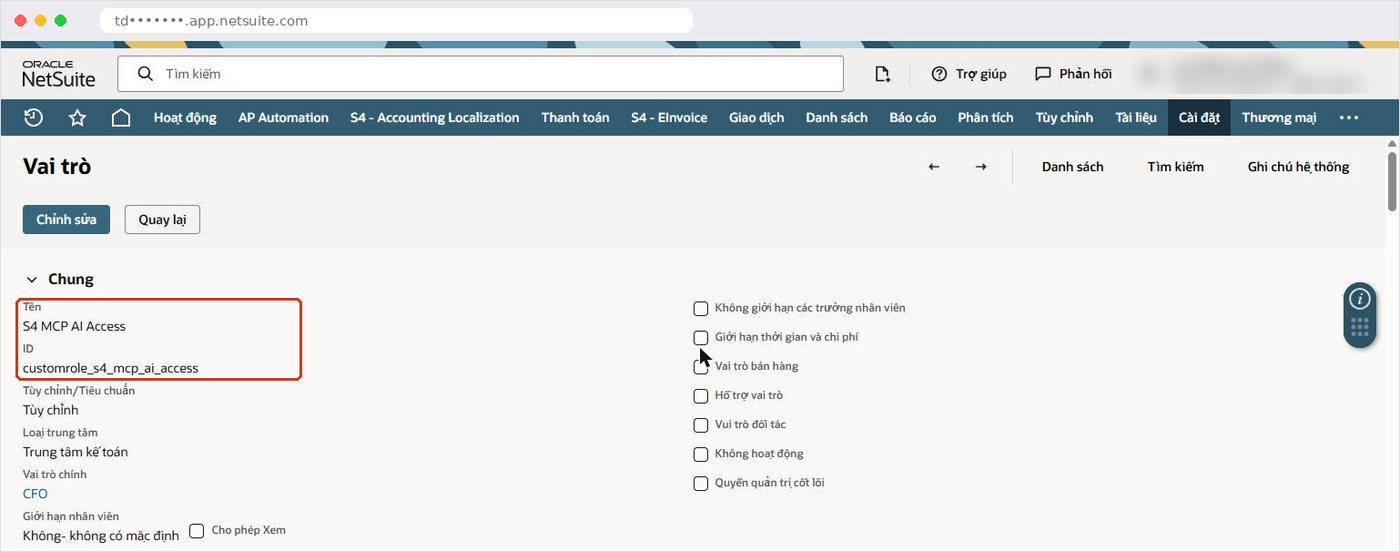
The AI role should be a dedicated custom role with fewer permissions than the user’s everyday role, limited to what the task actually requires. NetSuite blocks connections made with the Administrator role or any full-access role, to contain the damage if an AI client is compromised. In S4’s own account we created a role named “S4 MCP AI Access” for this purpose.
Under Setup > Users/Roles > Manage Roles, open the role and add three permissions on the Permissions > Setup subtab: MCP Server Connection, Log in using OAuth 2.0 Access Tokens, and REST Web Services (needed to create, retrieve and update records through the SuiteApp). Note that “Log in using OAuth 2.0 Access Tokens” is not the same as “Log in using Access Tokens”, which belongs to token-based authentication; picking the wrong one is a frequent reason the connection fails.
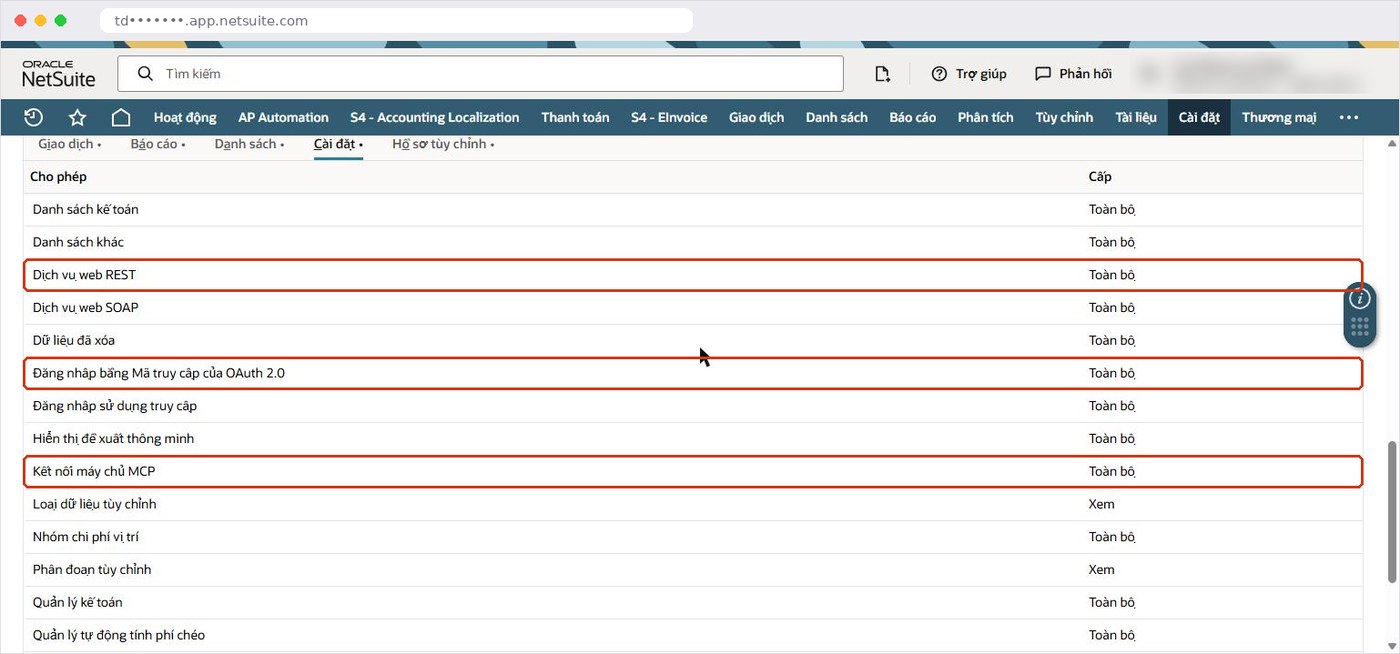
The transaction, list and report permissions attached to the role matter even more than those three. In the first phase, keep them at View for the data the AI needs to analyse, grant no create or edit rights, and assign the role only to people who genuinely need it. Each function, such as receivables, inventory or sales, can have its own AI role sized to its risk instead of one shared role for the whole company.
Step 3: How do you connect Claude to NetSuite, verify and monitor it?
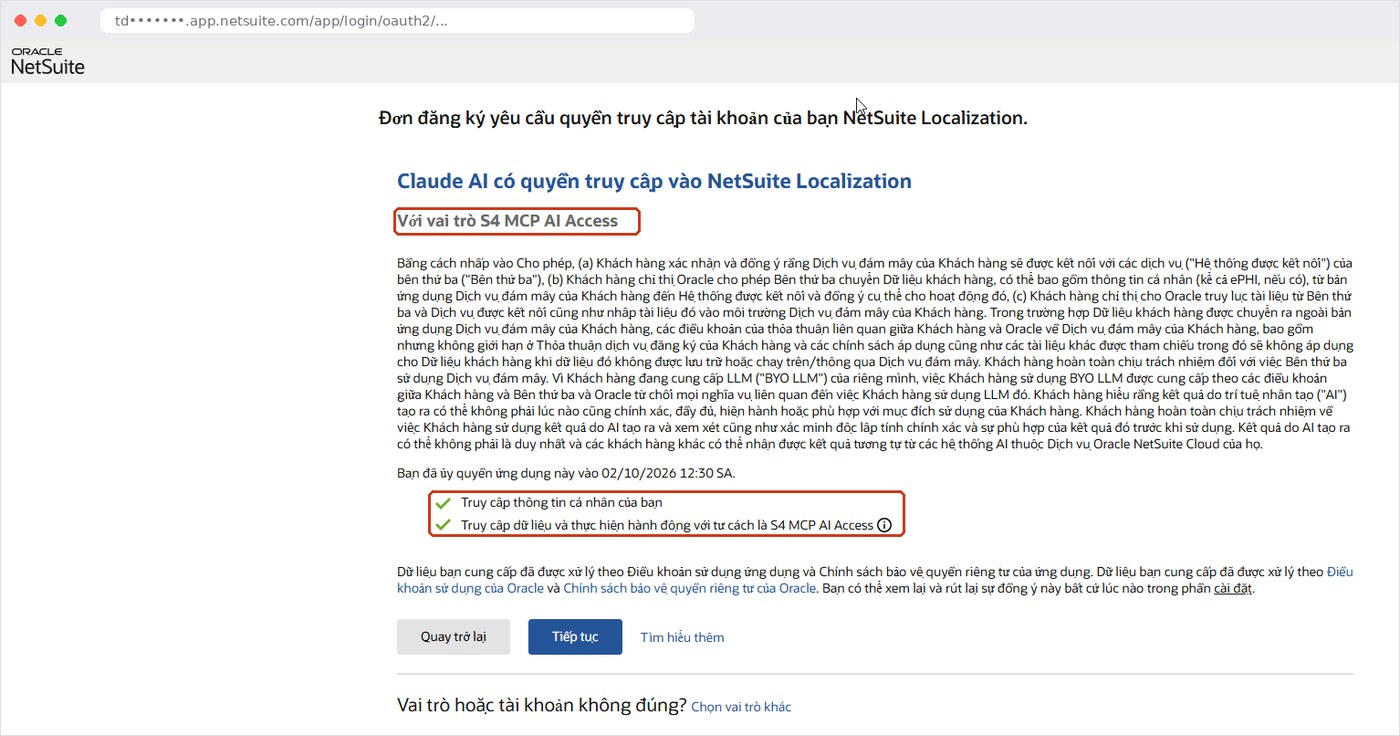
In Claude, open Search and tools > Add connectors, choose NetSuite > Connect, paste your account’s MCP server URL, then sign in and pick the AI role. There are two URL forms: https://<accountid>.suitetalk.api.netsuite.com/services/mcp/v1/suiteapp/com.netsuite.mcpstandardtools exposes only the MCP Standard Tools, while the form ending in /services/mcp/v1/all exposes every tool, including custom tools. In ChatGPT the flow is similar: Apps > NetSuite > Connect > Sign in to NetSuite > select the role. On first use NetSuite shows an OAuth consent screen so the user confirms which role the AI client will act under.
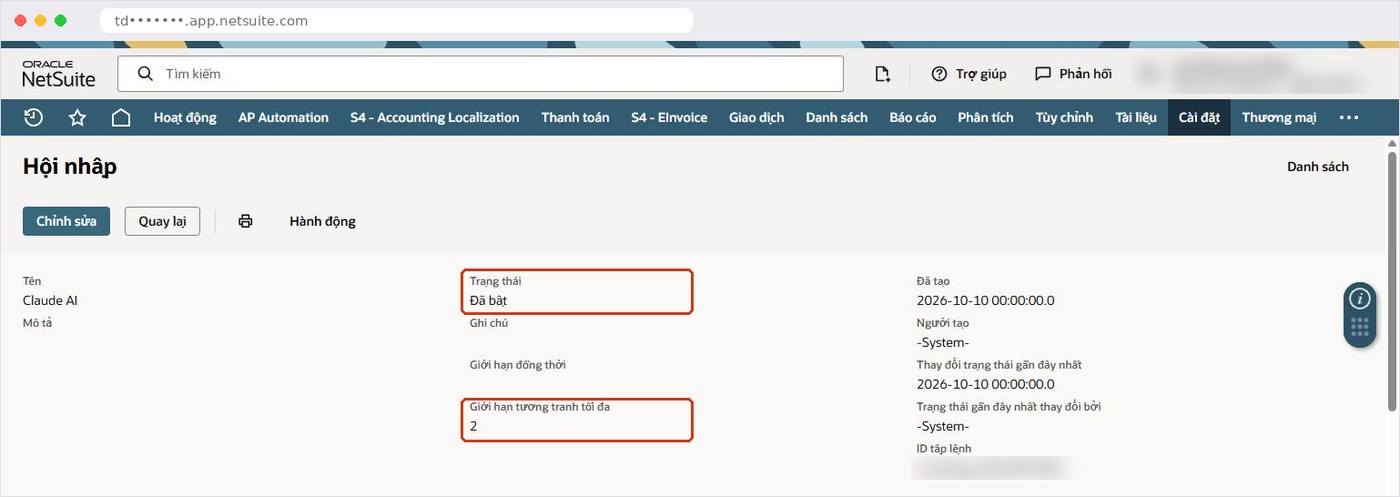
After the first connection, NetSuite creates an Integration Record for the AI client under Setup > Integration > Manage Integrations and enables it. Here an administrator can set the state to disabled to cut the connection immediately and set a concurrency limit. The account’s concurrency limit is shared with other integrations, so reserving a small share for AI Connector keeps AI traffic from slowing existing integrations.
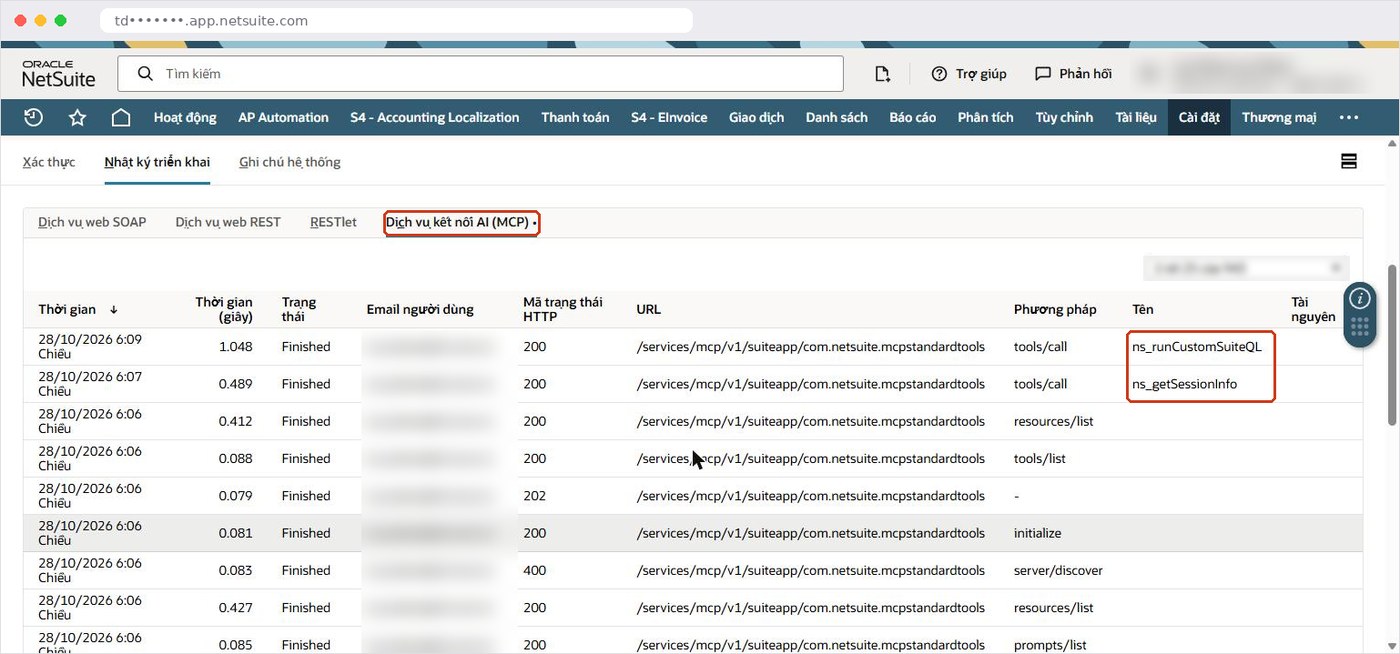
The Execution Log > AI Connector Service (MCP) subtab records the time, duration, status, user email, HTTP code, method and URL path of each call, such as initialize, tools/list and tools/call. Entries are kept for 21 days in production and 7 days in sandbox, so export them regularly if auditors need a longer history.
Which 7 mistakes make it unsafe to connect Claude to NetSuite?
All seven mistakes below come from treating the AI like an ordinary user, when in fact it can be steered by whatever content it reads.
- Giving the AI a full-access chief accountant role. Copying an existing role and adding MCP permissions is quick, but it carries create, edit and approval rights. Build a dedicated role and drop permissions to View for the first phase.
- Using SuiteQL or custom reports for financial figures. Oracle recommends standard reports and saved searches first, because standard reports apply business rules that a SuiteQL query does not reproduce.
- Not checking what the AI returns. Language models can invent figures; ask the AI to use the account’s real data and to return direct links to records so results can be verified.
- Ignoring concurrency. Over the limit, NetSuite returns “Too Many Requests” and other integrations may suffer; review the limit on the Integration Record.
- Never reviewing the execution log. The log keeps only 21 days; if nobody reads it, unusual calls go unnoticed.
- Combining NetSuite tools with broad-access tools. Giving the same AI file, browser or email access alongside NetSuite raises the chance that hidden instructions in a document lead it to read data and send it out.
- Having no emergency shutdown procedure. Decide in advance who removes MCP permissions, who revokes OAuth consent and who disables the Integration Record when something goes wrong.
What risks remain, and how far do NetSuite controls go?
The remaining risks sit mostly on the AI side and in the content it reads, while NetSuite contributes permissions, authentication and logging. No role has MCP permissions by default, the tools cannot call Suitelets or privileged scripts or send outbound HTTP, and every AI agent needs the user’s OAuth consent. The table summarises the risks Oracle describes and matching mitigations.
| Risk | What it looks like | Recommended control |
|---|---|---|
| Prompt injection | Hidden instructions in a PDF, web page or tool response make the AI do something the user did not ask for | Do not combine broad-access tools; train users to spot hidden instructions; confirm before major actions |
| Hallucination | The AI returns figures or records that do not exist | Prefer standard reports; request record links; verify before use |
| Tool poisoning, tool drift | A tool description carries hidden instructions, or a tool changes behaviour after approval | Use only trusted MCP servers and tools on an internal approved list; review tools periodically |
| Unintended actions | The AI creates or edits transactions, approves or pays | Start with read-only tools; require client confirmation before create, edit, delete or approve |
| Sensitive data exposure | Data reaches a third-party LLM beyond what is needed | Least-privilege roles; review the AI provider’s privacy policy; reconcile NetSuite logs with AI-side logs |
Data sent to a third-party model is governed by that provider’s privacy policy, users must acknowledge this before connecting, and the service has not been assessed for HIPAA compliance.
What does a good prompt for NetSuite look like?
A good prompt states the goal, the traditional way of doing the task, the tool, the role, the context, the input data, the output format and how to handle errors, following the structure Oracle suggests in its best practices. Here is an example for a receivables accountant:
- Goal: list customers with balances more than 60 days overdue in the Vietnam subsidiary, ahead of collection calls.
- Traditional way: the accountant runs the standard A/R aging report and filters it by hand in Excel.
- Tool: use ns_runReport with the standard aging report; do not use SuiteQL.
- Role: you are a receivables assistant with read-only access; do not create or edit records.
- Context: the output is for an internal meeting; currency is VND.
- Input data: report date 31 October 2026, Vietnam subsidiary.
- Output format: a table with customer name, overdue amount and days overdue, plus a direct link to each customer record in NetSuite.
- Error handling: if the tool fails or returns no data, say so and stop; do not estimate figures.
Reports run through the tools can currently be filtered only by date and subsidiary, not by accounting period, and AI clients typically handle about 5,000 rows per call, so split larger requests. When creating records, ask the AI to set an externalId to avoid duplicates if a call is retried. These scenarios are the focus of the S4 webinar on 6 November 2026.
When do you need custom tools instead of MCP Standard Tools?
Custom tools make sense when a process is specific enough that the standard tools do not cover it, for example a data check based on internal rules. A custom tool is a SuiteScript 2.1 script of type CustomTool, with inputs declared in a JSON schema and packaged as an SDF toolset object, managed under Customization > Scripting > Custom Tools. The AI client sees them only through the /services/mcp/v1/all URL. For most companies getting started, the standard tools combined with existing reports and saved searches are enough.
How can S4 Consulting help you connect Claude to NetSuite?
S4 Consulting, an Oracle NetSuite consultancy in Vietnam, helps design AI roles by function and risk level, configure AI Connector Service, set up log monitoring and train users to write safe prompts. We usually start by reviewing existing roles, agreeing which data the AI may read, and preparing saved searches and standard reports for the AI to use instead of free-form queries. If you are new to the platform, start with What is NetSuite ERP: a beginner’s guide; for Vietnamese statutory requirements see NetSuite financial localization for Vietnam; for automated workflows across systems see ERP integration with n8n and AI assistants. The quickest way to see the full process is to register for the free webinar on 6 November 2026, or contact our team to discuss your account.
Using ChatGPT and Claude with Oracle NetSuite: practical tips to lighten the accounting workload
3:00-4:00 PM (Vietnam time), Friday 6 November 2026 on Microsoft Teams. Free, registration required to receive the joining link.
Frequently asked questions
Does it cost anything to connect Claude to NetSuite?
NetSuite AI Connector Service is not a paid feature and the MCP Standard Tools SuiteApp is free. Any cost sits with the AI client, such as Claude Pro or a suitable ChatGPT plan.
Can I use the Administrator role for the AI connection?
No. NetSuite blocks connections with the Administrator role and full-access roles. Create a dedicated least-privilege role for AI.
Why is the tool list empty in Claude?
Usually the MCP Standard Tools SuiteApp is not fully installed or the role lacks permissions. Tools appear only when the role has the matching permissions.
How long are AI Connector Service logs kept?
The execution log on the Integration Record keeps 21 days in production and 7 days in sandbox, so export it regularly for longer retention.
How do I cut off the AI connection in an incident?
Disable the AI client’s Integration Record, remove the MCP Server Connection permission from the role and revoke the affected users’ OAuth consent.
References
- Oracle NetSuite Help - Required Features and Permissions (NetSuite AI Connector Service)
- Oracle NetSuite Help - Connect to the NetSuite AI Connector Service
- Oracle NetSuite Help - Associated Risks, Controls, and Mitigation Strategies
- Oracle NetSuite Help - Best Practices for MCP Standard Tools SuiteApp
- Oracle NetSuite - Ebook How to Configure and Secure the NetSuite AI Connector Service (11/2025)
- ITPro - NetSuite announces MCP Apps for AI Connector Service (31/03/2026)