


NetSuite AI agent in Microsoft Teams: 4 prerequisites and 6 steps in Copilot Studio
Written by the S4 Consulting ERP and AI team · Updated 31 Oct 2026
A NetSuite AI agent in Microsoft Teams lets accountants ask for Oracle NetSuite figures in plain language inside the Teams chat they already use every day. Companies on Microsoft 365 build the agent once in Copilot Studio, connect it to the NetSuite AI Connector Service through MCP, and publish it to the whole organization. In S4’s video we build an accounts payable agent (Vietnamese account 331) in 6 steps after 4 prerequisites. This article lists those steps, explains why Copilot Studio suits shared use, and compares it with ChatGPT and Claude.
The video is just over three minutes, so you can watch the video and keep this page open for the settings. For a longer explanation of each Copilot Studio screen, our step-by-step article on a Copilot Studio agent for Oracle NetSuite with MCP goes into more detail. Here we focus on the decision and governance side: why a Teams agent, what to prepare and how it compares with personal AI tools.
What is a NetSuite AI agent in Microsoft Teams?
It is a Copilot Studio agent that connects to Oracle NetSuite as an MCP server and is published to Teams and Microsoft 365 Copilot. Users chat with it like a colleague. Behind the scenes it calls the NetSuite AI Connector Service under a dedicated Oracle NetSuite role, so it can query, create or update data only as far as that role allows. The Administrator role cannot be used.
When recording the video, the S4 team built the accounts payable agent on its own Oracle NetSuite account with a sample company and a dedicated role. The step that needed the most care was copying the redirect URL from Copilot Studio back into the integration record and confirming the AI Connector Service scope; once that was saved, the connection and sign-in worked as expected. We also saw the agent propose details and wait for confirmation before saving, which we consider essential for any agent allowed to write data.
Why build the agent in Copilot Studio?
Copilot Studio fits when many people need the same kind of answers and the company wants central control. The reasons we see most often:
- Users stay in Teams or Copilot instead of learning a new tool.
- One builder configures the agent, its instructions and its connection; staff simply use it.
- The agent can be shared across the organization, for example to all accountants.
- Usage consumes Copilot Studio credits, managed by the company’s Microsoft 365 administrator.
- Microsoft states that DLP policies that block the connector also block the MCP server, so existing data policies keep applying.
ChatGPT and Claude remain good choices for analysts who explore data freely. A Teams agent is better suited to repeated, well-defined questions such as payables, receivables or cash.
What do you need to prepare before building the agent?
Four things need to be ready before anyone opens Copilot Studio:
- Enable the required features in Oracle NetSuite and install the MCP Standard Tools SuiteApp.
- Create a dedicated role for the agent. The agent can query, create or update data depending on this role, and Administrator cannot be used.
- Create an integration record with the authorization code grant and the AI Connector Service scope, then save the client ID and client secret.
- Agree on Copilot Studio credits with your Microsoft 365 administrator, who manages them.
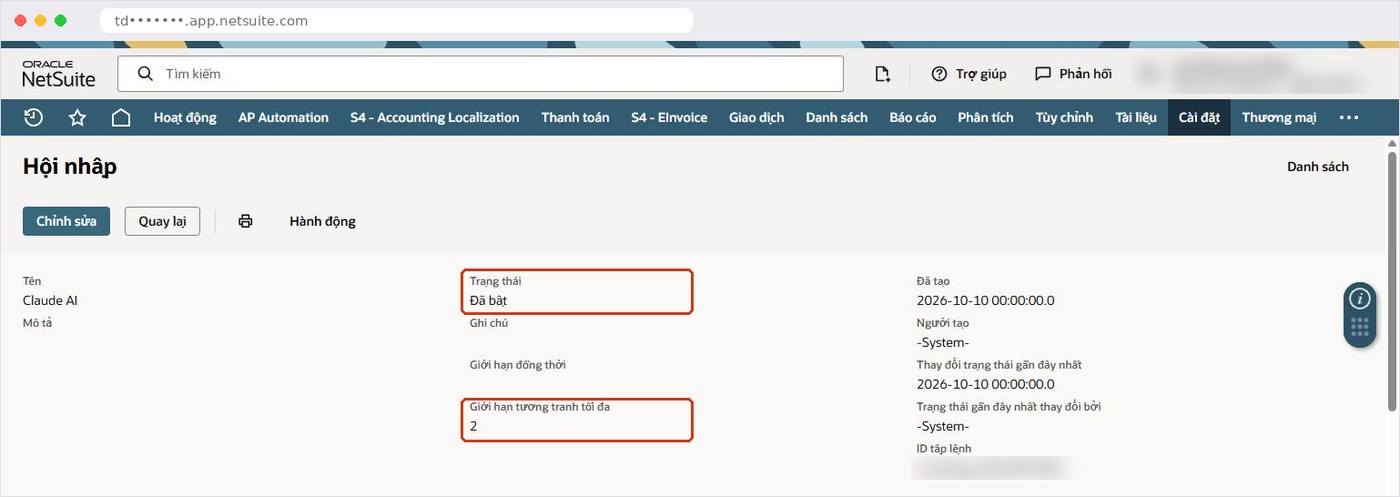
Save the client secret carefully when the integration record is created, since it is needed in step 3 below. If the account also runs other integrations, consider a dedicated concurrency limit on this record so the agent does not compete with them.
How do you build the NetSuite AI agent in Microsoft Teams in 6 steps?
The video follows six steps. They are short, but the order matters because step 4 needs a value that only appears in step 3.
Step 1: Create the agent and write its instructions
In Copilot Studio go to Agents, create a new agent and give it a name. Write instructions that state its purpose, tell it to use only real NetSuite data, and describe the layout you want, in the video an aging table to Vietnamese standards.
Step 2: Add NetSuite as a Model Context Protocol server
Go to Tools, Add, and choose Model Context Protocol server. Microsoft’s documentation describes this path as Tools > Add a tool > New tool > Model Context Protocol. Enter a name, a description, the server URL built from your account ID (for example https://ACCOUNTID.suitetalk.api.netsuite.com/services/mcp/v1/suiteapp/com.netsuite.mcpstandardtools) and choose OAuth 2.0. Copilot Studio supports Streamable transport only.
Step 3: Fill in the manual OAuth configuration
Choose manual configuration and enter the client ID, client secret, authorization URL, token URL, refresh URL and scope as shown in the video, then click Add.
Step 4: Register the redirect URL in NetSuite
Copy the redirect URL that Copilot Studio generates, paste it into the integration record’s Redirect URI, check that the AI Connector Service scope is selected, and save.
Step 5: Create the connection and try it in the preview pane
Create the connection and sign in to Oracle NetSuite. Administrator is blocked, so choose the dedicated role, review its permissions and click Continue. The NetSuite server then appears under the agent’s tools, and you can ask questions in the preview (Test) pane.
Step 6: Publish to Microsoft 365 and Teams
Publish the agent to Microsoft 365 and Teams, share it across the organization, and users can work with it in Teams chat or in Copilot. S4 has published an accounts receivable agent for account 131 in the same way.
What did the accounts payable agent answer?
In the preview pane the question was “does the sample company still have accounts payable?”. The agent answered with the total payable, the number of vendors and the 10 vendors with the largest balances. The agent can also create or update data, for example a new vendor, and in the video it proposed the details for the user to confirm before saving. That confirmation step is what we recommend for any agent whose role allows writing records.
How do ChatGPT, Claude and Copilot Studio compare for Oracle NetSuite?
All three rely on the same Oracle NetSuite preparation and the same role-based permissions. They differ in who configures the AI side, how authentication is set up, where users work and how cost is counted. The comparison below is qualitative and based on the three S4 videos.
| Criteria | ChatGPT | Claude | Copilot Studio |
|---|---|---|---|
| Who configures the AI side | Each user installs the NetSuite app | Each user adds the connector | One builder creates the agent for everyone |
| Authentication | User signs in with OAuth and picks a role | User signs in with OAuth and picks a role | Manual OAuth with an integration record, client ID and secret |
| Where users work | ChatGPT | Claude | Microsoft Teams and Microsoft 365 Copilot |
| Cost basis | ChatGPT plan of each user | Claude plan of each user | Copilot Studio credits managed by the Microsoft 365 administrator |
| Best fit | Individual analysis and reviews | Analysis, dashboards, skills for policy | Shared, repeated questions across a team |
| Guide | NetSuite app for ChatGPT | Claude NetSuite connector | This article |
In our experience, these options work well together. Analysts can use ChatGPT or Claude, while a Teams agent answers routine questions for a wider group, each through its own carefully designed role.
How do you govern the agent’s usage and cost?
Governance comes from both platforms working together. On the Oracle NetSuite side, the dedicated role limits what the agent can touch, and the execution log records every tool call.
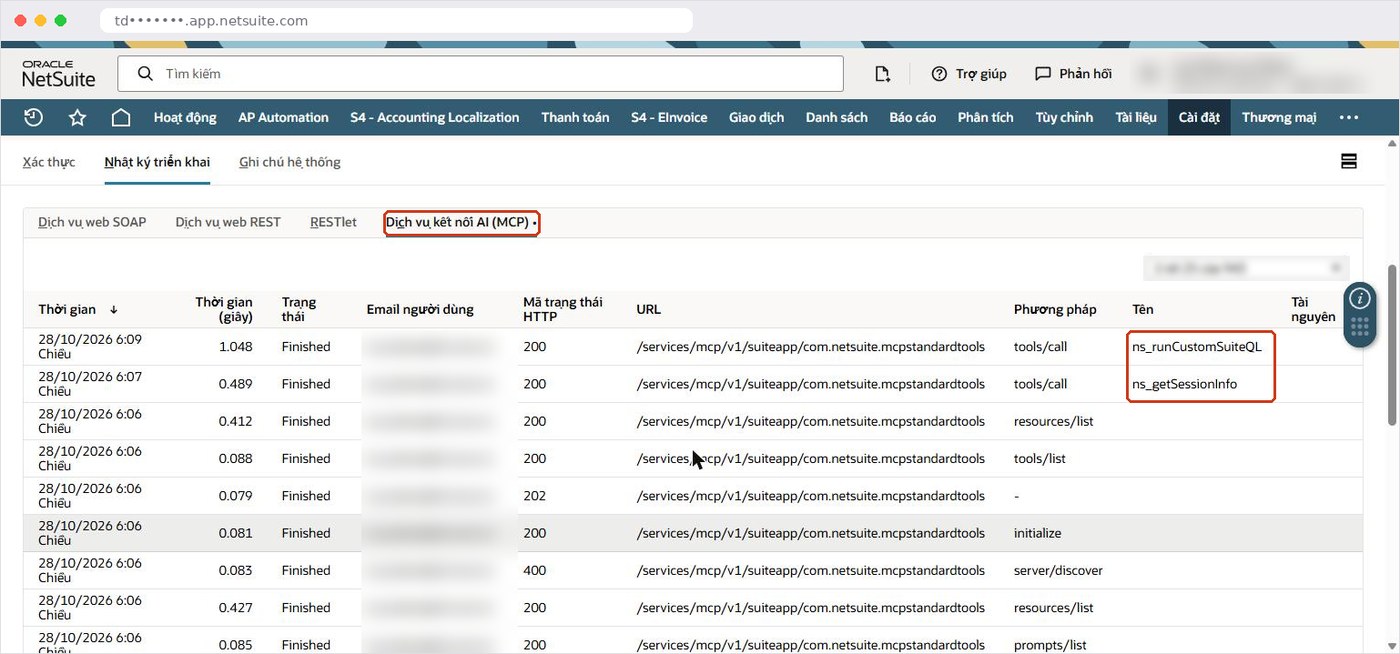
- Oracle NetSuite keeps the Execution Log > AI Connector Service (MCP) for 21 days in production and 7 days in sandbox.
- Copilot Studio usage consumes Copilot Credits; the Microsoft 365 administrator can view consumption.
- DLP policies that block the connector also block the MCP server.
- Oracle states that NetSuite cannot eliminate prompt injection or hallucination, only limit their impact, so finance should verify figures against standard reports before official use.
- After any change to the role’s permissions, disconnect and reconnect the agent’s connection choosing the right role.
How can S4 Consulting help you build a NetSuite AI agent in Teams?
S4 Consulting is an Oracle NetSuite consulting firm in Vietnam. We help mid-sized and large companies design the agent’s role, set up integration records and OAuth, write agent instructions that match local reporting needs, and plan the rollout with your Microsoft 365 administrator. For an overview of the platform see our Oracle NetSuite ERP page, or contact S4 Consulting to discuss your agent.
Build a NetSuite AI agent your team can use in Teams
S4 Consulting can design the agent role, set up the integration record and OAuth, and plan the rollout with your Microsoft 365 administrator.
Frequently asked questions
What is a NetSuite AI agent in Microsoft Teams?
It is a Copilot Studio agent connected to Oracle NetSuite as an MCP server and published to Teams and Microsoft 365 Copilot. It works under a dedicated NetSuite role, never Administrator.
What do I need before building the agent?
Enabled features and MCP Standard Tools, a dedicated role, an integration record with authorization code grant and AI Connector Service scope, and Copilot Studio credits from your Microsoft 365 administrator.
Which authentication does Copilot Studio use for NetSuite?
OAuth 2.0 with manual configuration: client ID, client secret, authorization URL, token URL, refresh URL and scope. The redirect URL from Copilot Studio goes into the integration record.
Can the agent create records in Oracle NetSuite?
Yes, if the role allows it. In S4’s video the agent proposed details, such as a new vendor, for the user to confirm before saving.
How is the agent’s usage paid for?
Agents consume Copilot Studio credits, which the company’s Microsoft 365 administrator manages. The NetSuite AI Connector Service itself is not a paid add-on.
References
- Microsoft Learn - Connect your agent to an existing Model Context Protocol (MCP) server
- Microsoft Learn - View agent’s billing consumption (Copilot Credits)
- Microsoft Learn - Connect and configure an agent for Teams and Microsoft 365 Copilot
- Oracle NetSuite Help - Create Integration Records for Applications to Use OAuth 2.0
- Oracle NetSuite Help - NetSuite AI Connector Service